


By Garrett Seeley, CBET
The great thing about the TCP/IP suite is that it comes with its own set of tools, such as ping and IPCONFIG (IFCONFIG in Linux). Being in the TCP/IP suite, these commands work on nearly any computer system using the Internet protocol. Additionally, some commands are just as useful but have specific functions for troubleshooting communications. These commands are ARP, TRACERT, NETSTAT, and NSLOOKUP.
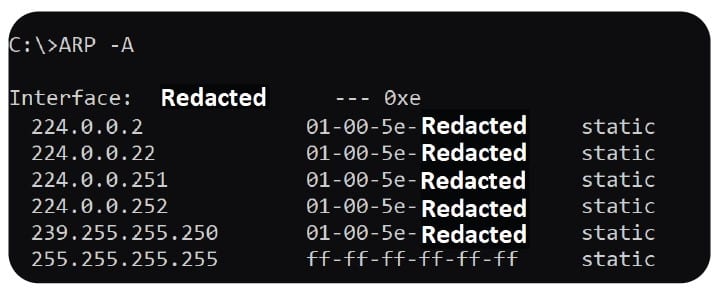
ARP -A:
Ever need to figure out which machines are on the same network as the one being repaired? Perhaps there was a need to figure out a MAC address to a machine, and only the IP is known. ARP can help in both cases. The Address Resolution Protocol, ARP, is a cache of the LAN IPs and MACs seen over the network. (Note: MACS and LAN IPs are masked in this article’s pictures.) This information is usually only accessible on the switch or router. However, by using ARP -A in the command line, a technician can look up IPs and MAC addresses of all the other network machines on a LAN. By entering ARP -A (the IP of a machine), a MAC address can be looked up for any specific IP. There are limitations to ARP. It is a list that is relative to the machine being used. That machine may not have seen all IPs in its specific VLAN. Also, ARP is a possible vulnerability for hacking. Therefore, if a duplicate MAC exists, this is a potential network security issue. All these reasons make ARP a powerful tool for figuring out who is on the LAN.
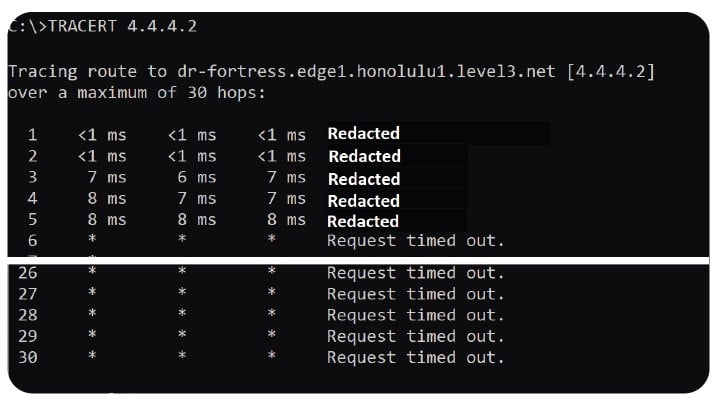
TRACERT:
TRACERT can give critical information in cases where communication is either slow or not functional. When the cabling, IP, and ACL settings are correct, yet the communication is failing, try using this command. TRACERT counts the number of routers between a machine and the target IP. It also works with DNS names, so a website name or a LAN server can be used as a target. TRACERT sends three pings to each LAN router (masked in the pictures) and presents the data showing the speed of communication. This trace will go through LAN routers and then through each of the Internet routers used to get to the target. Each router, called a “hop”, is a step in the network path between the machine and the target. If there are over 30 hops, the destination is slow and may be unreachable. The router where the responses stop is either a problem or is blocking the ping results. If there are routers that do not reply, their step will be represented with asterisks. Any significant delay in ping time or a request timeout that causes no responses afterward shows a problem in that router. In this way, TRACERT can show issues with the LAN or the Internet itself. It can be quite useful to see how a network responds between a source and a destination IP.

NETSTAT -B
Netstat is a command to see the individual programs on a computer and who they are communicating to. It shows the type of communication, Machine IP (masked in the picture), and port used after the colon. The destination IP and port are listed even if it is over the Internet. The state of the communication and the Process Identifier called a PID are also listed. This is mostly used in Windows with the NETSTAT -A (Show active) -N (Show IPs and Ports) -O (Show PID) and the -B (Match IP to processes) option. Regardless of the options used, this list shows exactly who a computer is communicating with and what software is using it. That is a powerful tool to verify that a process is communicating. If the PID number is not clear, use the task manager in a details list to pair up the communication and the software. Using this tool, technicians can view all communications in and out of a machine. With NETSTAT, nothing can hide in the background. This is handy if you either suspect something is unnecessarily using system resources or potentially even suspect malicious software.
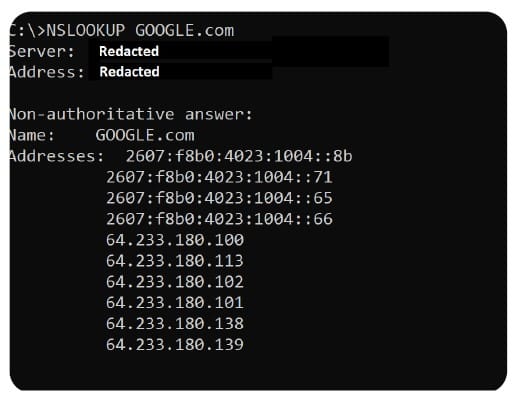
NSLOOKUP
Finally, there is a tool allowing us to directly talk to our DNS server and ask it for an IP given a website name, or a name given to an IP. This command is NSLOOKUP. It is a potential troubleshooter for the DNS itself, but mostly, it is used to look up an IP that is not always easy to remember or that changes dynamically. NSLOOKUP is easy to use. Use the command and the IP or name to find, as pictured (my LAN IPs and MACS are masked in these pictures) As these commands are widely used. Any machine using an IP has these commands: Windows, Linux, or even an Apple Terminal use these commands. They will allow for flexibility in troubleshooting communication issues regardless of the hardware that is using the network. Try these out and see what they can do.