


By Garrett Seeley
One of the biggest problems with medical devices is that we depend increasingly more on software and with that comes the potential for the software to become unusable. This can be due to various factors such as a power loss during a system update. Regardless of the reason, software can become corrupted, operating systems can experience bloat and hard drives can fail. This is why one of the most critical aspects of preventive maintenance is maintaining quality system backups. In the event of data loss, regardless of the cause, a system backup can help restore the functionality of the device.
These backups can range from a simple backup of settings to an image of the entire hard drive, each stored on backup media. Backups can be scheduled automatically for events such as after a settings change or a full backup of the entire system performed at night. Each type of backup serves a different function, takes a different amount of time to create or deploy, and has a varying impact on system restoration.
TYPES OF BACKUPS
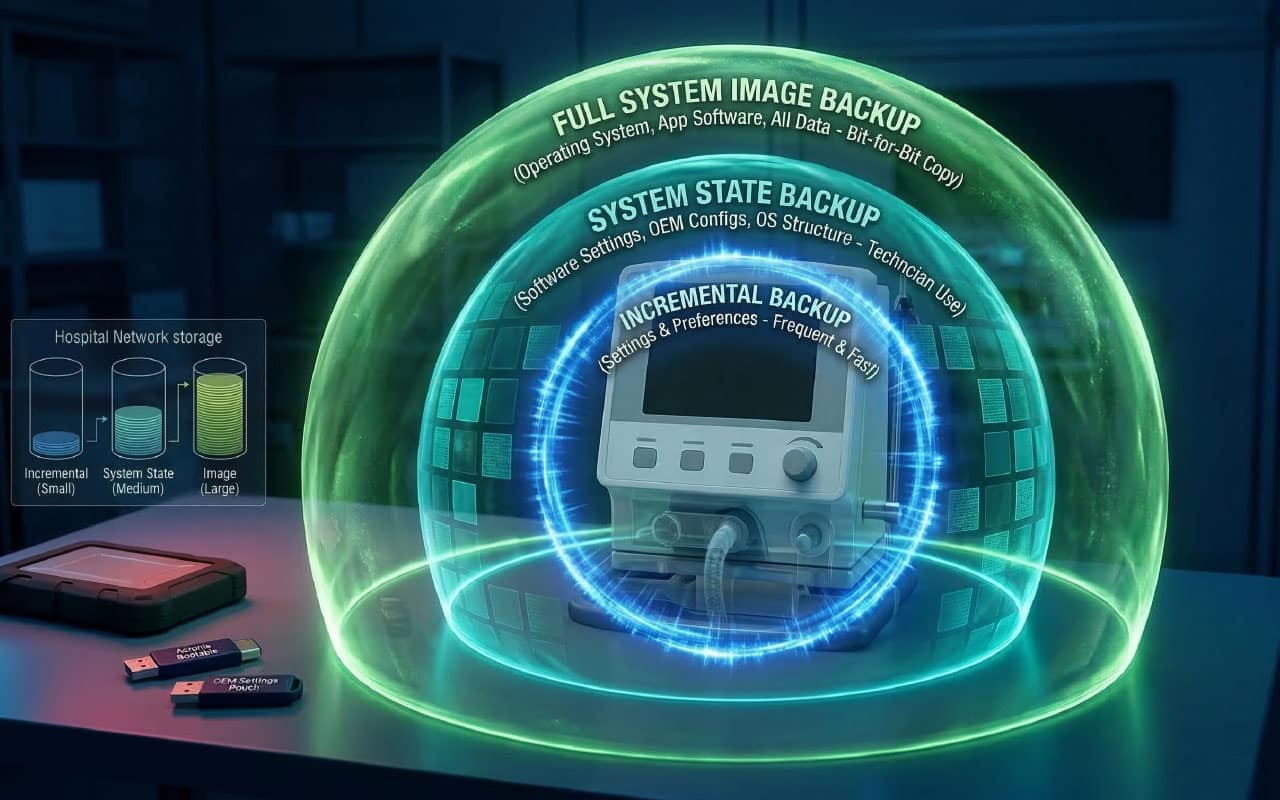
• Incremental Backup: The first type of backup is an automatically set incremental backup. This can be as minimal as a settings backup that the system makes during a safe shutdown. Some systems can take up to 10 minutes to shut down due to this setting. This backup is usually stored on a supporting system, such as a networked image reconstruction server. In the event of a software problem, this stored list of settings and preferences helps get the system back to normal. Incremental backups store only the changes made to files in a folder. Common workstation operating systems like Windows and macOS feature such backups as System Restore. These programs serve as an incremental, settings only for the host operating system but do not affect medical device applications. Other incremental backups may be more involved or detailed, but they will take much longer for the system to perform the work. Because incremental backups can be set to run during a workday, their focus is often limited to keep the time for the backup low. In this way, changes to the most valuable information are preserved.
• System State Backup: The second type of backup is a system state backup, which usually includes a list of all software settings stored in the system. In the event of a total information loss, such as during a hard drive failure, this backup helps a technician reload the system and restore it to its previous state. Since this is not a full system image backup, it does not protect against the loss of operating systems and may not even contain the original OEM software. Therefore, it is crucial to keep copies of the operating system and application software handy alongside the backup settings. Most imaging systems have a USB or DVD version of this backup stored nearby, often in a small pouch within the equipment’s cabinetry. It’s also recommended to keep an extra copy on a USB drive in a safe place. This is commonly what is created during an OEM software backup performed during preventive maintenance. It will not feature all the system data but will contain what is needed for a field service technician to restore the system to service. It stores a broader list of system settings than an incremental system restore.
• Full System or Image Backup: The third type of backup is a full system backup, which includes all data, operating system and application software. These backups are usually lengthy. A full backup typically requires a separate operating system like Acronis or Clonezilla, which runs on a flash drive and does not require the main hard drive to be active. In fact, the main drive cannot be active as it is a source of data for an image. These backup OSs load into memory, examine all drives, and create a bit-for-bit copy of the existing drive onto a target media. This can be done by hard drive or partition and is a bit-for-bit copy. This copy is compressed and stored on a target drive as a single file. Pay close attention to source and target drives to avoid accidentally erasing the drive you intend to back up. This backup file can be stored in various locations given the space needs, including both over a hospital network or even online.
CONCLUSION
Ultimately, all these backup techniques serve a purpose and provide maintenance options for most medical devices. Generally, it’s recommended to have a copy of the operating system, the application software from the most recent software update and at least one system state backup available. These backups should be kept on-site at the hospital for system repair. An additional copy of the settings should also be kept on the device or in the work area for external OEM field service personnel. Keep in mind that you have some options. Ask the OEM about additional incremental backups that can be deployed quickly, and during extended preventive maintenance periods, inquire if a full system image backup is possible as a last resort.
Each style of backup offers additional options in emergencies. No single technique is sufficient on its own; all are necessary from time to time. Ensure at least one viable backup method is used at your facility and is suitable for the equipment’s need. This is your insurance in a crisis moment.