

By Garrett Seeley
A couple of articles ago, I wrote about the differences between hard drive technologies and the potential for them to cause issues when booting separate systems. This reminded me of the many times the concept has been misunderstood throughout my career. One thing I have consistently seen cause confusion among starting technicians is the difference between RAM (random access memory) and hard drives/storage. People often refer to RAM as storage, and vice versa. They are not the same thing.
Memory Overview
Memory (RAM) is a temporary workspace where the CPU, the main processing unit, does its actual work. Think of it like a counter space in a kitchen, where the CPU is the chef. This should not be confused with hard drives or storage in general. Both RAM and storage have sizes measured in gigabytes (GB) and both have access speeds; however, memory is much faster than drives due to the connection style. The CPU needs to access memory very quickly, so the memory is connected to the motherboard using a bus. The number of pins RAM uses is like the CPUs, usually 288 pins for data transfer in a 64-bit system. This means both the RAM and CPU can load or unload 64 parallel bits (1s or 0s) simultaneously. About a quarter of the CPU pins are used just to connect to memory.
Currently, the typical memory is around 16 GB, with RAM speeds significant enough to match the CPU itself, moving at 2 to 4 GHz (billions of inputs or outputs per second). This high speed allows memory to handle the CPU’s working information needs efficiently.
Cache Memory
As a side note, there is memory on the CPU itself called “cache.” This is for the quick access of data that the CPU uses repeatedly. The most frequently used information is stored in cache because it offers the fastest possible access without the CPU leaving its own chip. Think of it like a chef wearing an apron with their most used tools in their pockets. Although it’s the fastest way for the CPU to get information, cache is not really for main work.
Storage Overview
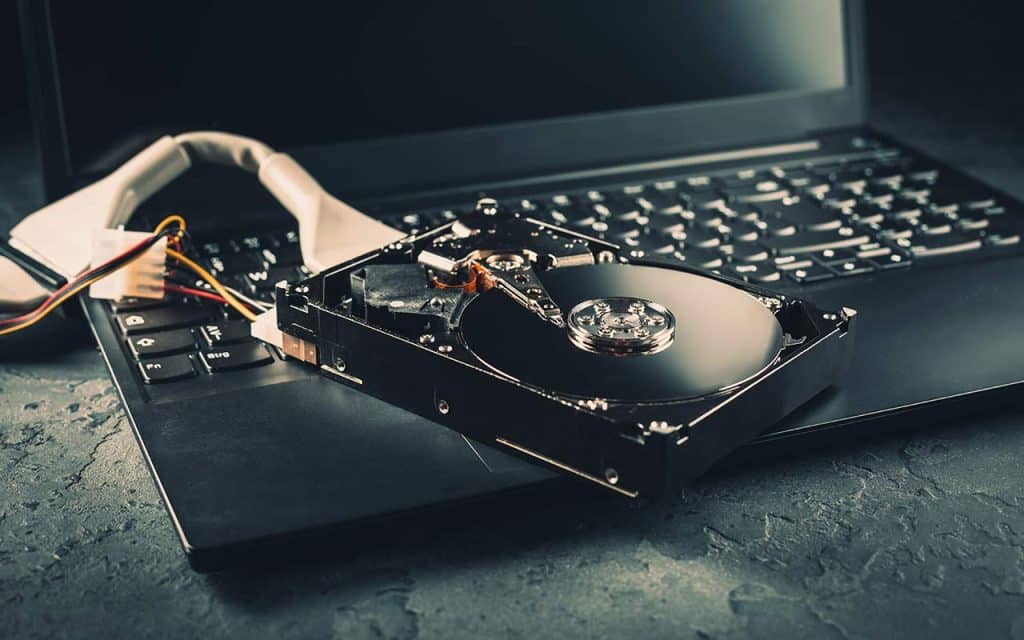
Despite being the primary working areas of the computer, memory and cache are temporary and volatile, meaning data does not remain if power is removed. For long-term data retention, we use static or persistent storage devices like hard drives. All drives act as long-term storage and do not facilitate the CPU’s main work. Using the kitchen analogy again, a drive is like a refrigerator or freezer – not a workspace, but a storage space.
Modern hard drives have storage sizes typically in the terabyte (TB) range – like 1 or 2 TB – a hundred times more than RAM. However, the connection used by hard drives is usually serial, leading to slower speeds. For instance, a SATA hard drive often operates at 1.5 Gbps (less than one-sixth the speed of RAM). Hard drives use few connectors, such as three wires for data communication, unlike the 64-bit RAM bus which can handle more data simultaneously. Therefore, randomly accessing data on a hard drive can be much slower, up to 100,000 times slower than RAM for some tasks. Thus, it’s best to consider drives strictly for storage.
Virtual Memory
There are exceptions, such as Virtual Memory, which is called swap files on Linux/Unix systems. These are part of the hard drive used as RAM overflow. This setup allows the CPU to move less frequently needed data from RAM to the hard drive, effectively expanding the system’s usable memory. Items in this area operate as if they are still in RAM, and for practical purposes they are. However, the hard drive provides a small relief for the RAM, effectively expanding its usable area.
The application to older medical devices
• CPU and RAM: Older systems used large central processing units (CPUs), often housed under a heat sink, connected to RAM via multiple parallel bus lines. This configuration allowed fast data transfer and efficient processing.
• EEPROM Storage: Electronically erasable programmable read-only memory (EEPROM) served as the storage device for the onboard computer. The EEPROM chip is typically socketed and located near the CPU, identifiable by a version number or part number, and is often secured with zip ties or clips to ensure it remains in place.
Modern Systems
Modern medical equipment has evolved to employ architecture like that of modern desktop computers. This often uses consumer off the shelf (COTS) hardware. This can include:
• CPUs: Modern CPUs are more capable and feature integrated, larger heat sinks for better thermal management.
• High-Speed RAM: Utilization of high-speed RAM modules such as DDR4 or DDR5, which are present on small cards or “sticks” next to the CPU.
• Advanced Storage Solutions: More advanced storage solutions like solid state drives (SDDs), which provide higher storage capacity and faster access times are mounted on SATA buss to the motherboard, usually farther away from the CPU, next to the card expansion slots. Newer M.2 drives look like USB storage but are placed on a special slot next to the memory. This is because M.2 Drives use a similar slot to the video card bus.
The transition from older to modern systems represents a significant advancement in technology, improving the efficiency, performance and reliability of medical equipment. Understanding these components and their interactions is crucial for maintaining and upgrading medical systems. Using these techniques will help you quickly recognize the type of board and infer its purpose during initial troubleshooting. These concepts help demystify internal components within medical devices. While the CPU uses RAM as a small yet fast workspace, drives serve as long-term storage. That is the most important concept that is present in all computers and yes, even medical systems. Look for these elements to better understand the hardware you are working on.